
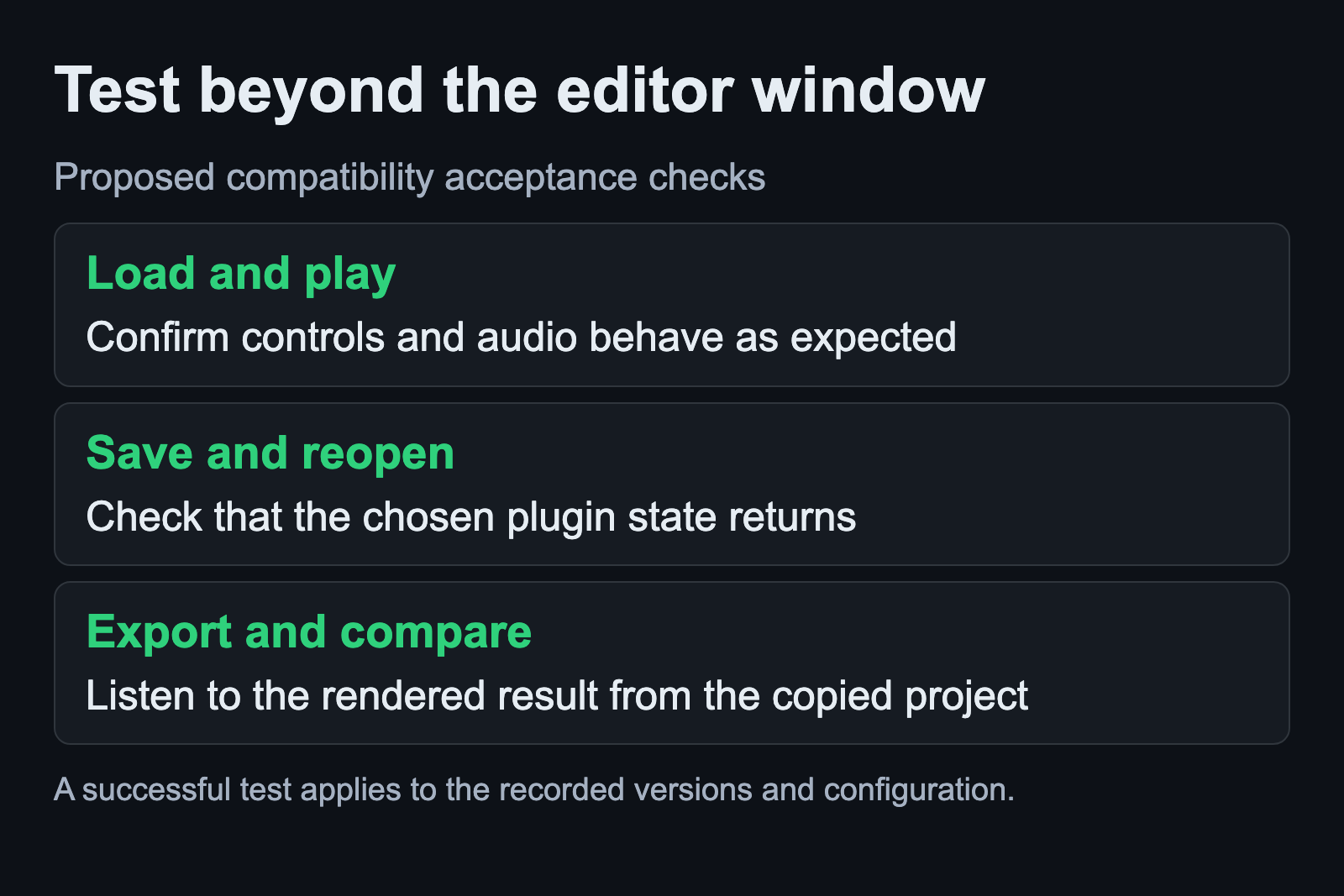
A Windows plugin is ready for a Linux project when it loads, processes the intended material, restores its saved state and survives an export. An editor window opening is only the first check. Test one plugin in a copy of a small project before depending on it in an arrangement you need to finish.
This guide assumes a native 64-bit Linux DAW on Ubuntu Studio 24.04 and an existing Wine and yabridge installation that meets the current upstream prerequisites. It gives an acceptance procedure, not a universal installer command. Keep your working projects and plugin settings available while evaluating the new setup.
Check the host and bridge requirements
The official yabridge repository documents support for Windows VST2, VST3 and CLAP plugins in Linux hosts. Read its host matrix and current known issues for the plugin format you intend to use. The project specifically directs users to native DAW packages rather than Flatpak packages.
Record the versions of the host, Wine, yabridge and plugin in your test notes. Upstream’s tested Wine version is context for its compatibility matrix, not a blanket instruction to downgrade your system. Follow the current prerequisite and issue notes before choosing a version combination.
If the plugin maker supplies a native Linux build, examine that option first using its own installation instructions. The Ardour plugin guide explains that distribution package names and installation methods vary. Do not assume a Windows binary and a Linux binary become interchangeable because they share a plugin format name.
Keep WineASIO separate from plugin bridging
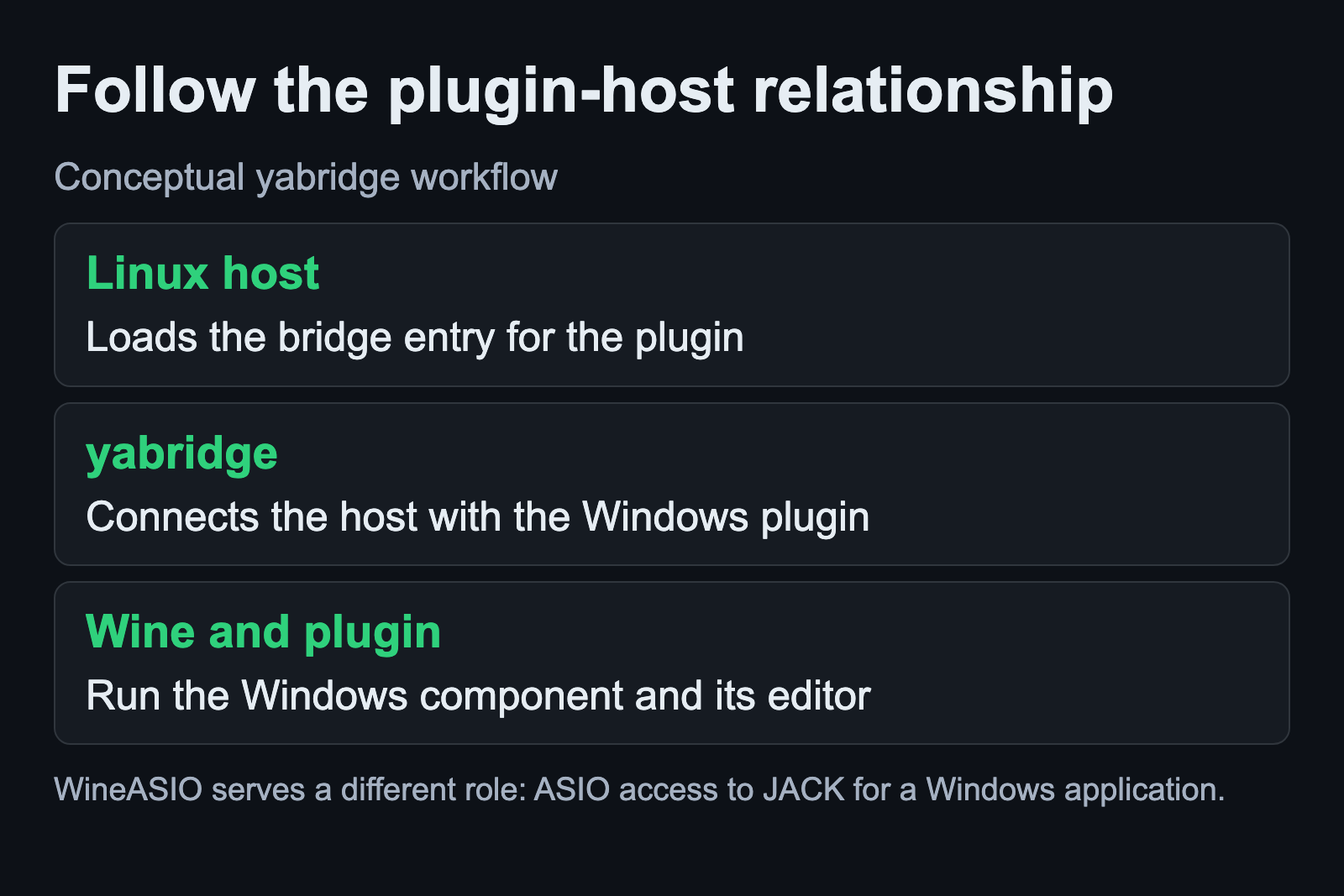
WineASIO provides an ASIO-to-JACK connection for software running under Wine. A plugin bridge instead connects a Linux host with a Windows plugin. Identify which application is running where before installing another component to solve a loading problem.
The WineASIO explanation follows that distinction in more detail. If your Linux DAW already records and plays correctly, preserve that audio route while testing plugin loading. Changing the server at the same time adds another possible reason for silence.
Inspect the existing bridge setup
For an installation where the companion utility is available on the shell search path, the upstream documentation provides these inspection commands:
yabridgectl list
yabridgectl status
Review the managed plugin directories and installation status. If you used the documented prebuilt archive layout, the utility is at ~/.local/share/yabridge/yabridgectl; use that installed path instead of assuming the short command exists.
After adding or changing plugins, upstream uses yabridgectl sync to update the bridge setup. This changes the managed bridge files. Confirm the intended directories first and follow the installation method you actually used. This guide deliberately avoids a copied example containing a plugin directory that might not exist on your machine.
Build a small test around one plugin
Choose a licensed plugin whose normal behavior you recognize. Use a copied project with a short audio passage or MIDI part that makes its effect easy to hear. Keep the source material simple enough that a change in sound can be traced to the plugin under test.
Ask the host to scan the relevant plugin format using its documented controls. If the plugin is missing, keep the scan result separate from the audio-routing test. Record whether the host failed to find it, rejected it or opened it without usable audio. Those are different observations to take into the upstream troubleshooting notes.
Once it loads, change a recognizable setting and listen again. Check the controls you actually need, including preset selection or MIDI response when relevant. Do not declare the plugin compatible after testing a feature your real project never uses while leaving its essential function unchecked.
Save, close and reopen the project
Save the copied project with the changed plugin state, close it and reopen it. Confirm the plugin remains available and the recognizable setting returns. Listen to the same passage at the same point in the project. This tests a more useful outcome than leaving a working editor open for the whole session.
If a license dialog or missing resource appears, record it as part of the result. Follow the plugin maker’s supported activation process. Do not assume a successful first launch establishes that later project loads will behave the same way.
Keep the copied session’s source media with it. The Ardour backup guide notes that imported media can live outside the session folder. A test copy missing its source material introduces a separate failure that says little about the plugin bridge.
Check the exported audio
Export the passage using the host’s documented range and channel selections. Ardour’s export documentation describes these choices and its analysis display. Listen to the exported file and compare the intended effect with session playback.
If the render differs, preserve the exact setup and investigate the specific plugin and export behavior. Avoid adding several compatibility options at once. A useful report contains the versions, a repeatable trigger and the stage that fails. The Linux DAW comparison can help you choose a host trial around the work you need to do.
Sources and scope
Bridge commands and prerequisites come from the official yabridge project. WineASIO and Ardour documentation establish the separate roles and file checks. This is a proposed test procedure; no Windows plugin was run or benchmarked for this article. Sources checked September 6, 2026.