
Choose between JACK and PipeWire for music production by checking the session you need to run. List the recording program, other audio applications, interface, and connections that matter. If those already work together, save that setup before changing it. A different server name alone is a weak reason to rebuild a working recording machine.
This comparison uses Ubuntu Studio 24.04 LTS for its distribution example. It explains the documented architecture and gives you a way to compare your own workflow. We have not measured these servers on your hardware. For a first recording with the installed PipeWire setup, follow our Linux audio setup guide.
JACK can name the interface or its implementation
The JACK project defines JACK as an application programming interface and its implementations, JACK1 and JACK2. The interface gives audio programs a common way to communicate with one another and with audio hardware. When a program offers a JACK backend, that describes the interface it can use.
PipeWire provides its own implementation of the JACK client libraries. A JACK application can therefore connect to PipeWire. Seeing JACK in a program’s audio settings does not by itself tell you that a native JACK server is running. That distinction explains much of the apparent contradiction in guides that tell PipeWire users to choose JACK.
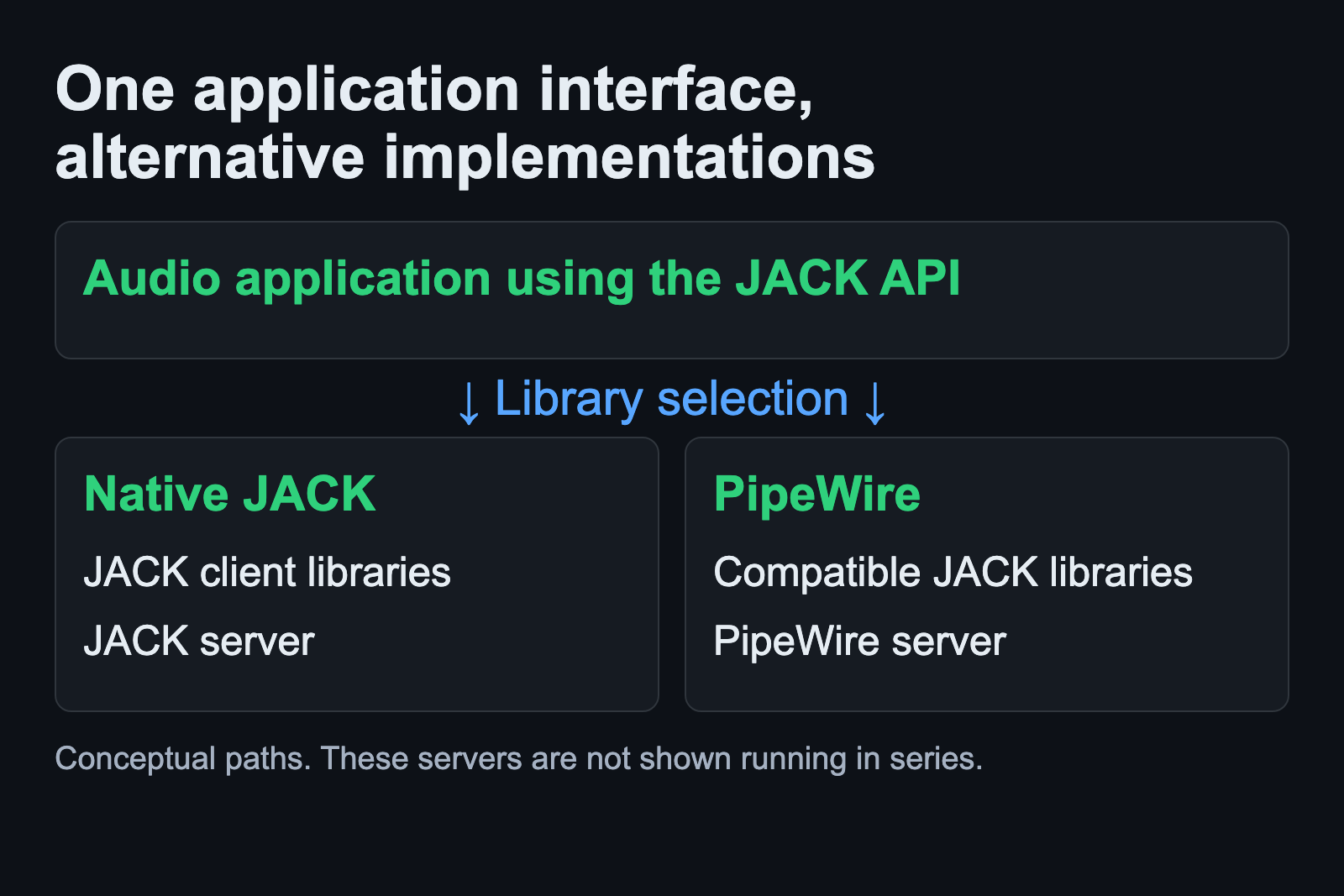
Keep three questions separate when investigating a setup: which interface does the application use, which implementation serves it, and where are its ports connected? Write the answers down separately. Changing a port connection and changing the audio server solve different problems.
PipeWire combines application compatibility with a graph
PipeWire represents processing objects as nodes with input and output ports. Links carry data between those ports. Its documentation also describes exposing ALSA devices and accommodating applications that use JACK or PulseAudio. That gives a musician a way to bring different application interfaces into a shared audio graph.
The graph and its management have separate jobs. PipeWire handles graph execution; a session manager supplies policies such as device handling and automatic links. This matters when a device appears but the connection you expected is missing. The server can be present while the routing still needs attention.
For a home recording computer that also plays reference material or runs other audio applications, this compatibility is a useful reason to evaluate PipeWire. Check your actual applications, though. A general architecture description cannot certify an interface, application package, or saved project.
A native JACK workflow remains a specific choice
A musician with an established native JACK session has something concrete to preserve: the applications, their connections, and the settings under which a project works. Record those details before trying a replacement. Keep a copy of the project that opens successfully so the experiment has a clear reference.
Ubuntu Studio’s Audio Configuration utility separates two decisions that older instructions can blur. It offers an advanced control to disable PipeWire’s JACK implementation for native JACK use through QJackControl. Its older whole-stack switch to PulseAudio/JACK is a different operation.
On Ubuntu Studio 24.04, that whole-stack switch changes packages and requires a restart. The project describes it as deprecated and unsupported; later releases remove it. Read the distribution’s current control descriptions before acting. These are system-wide settings, so close and save work before considering a change.
A comparison article should help you identify the choice before offering commands. Here the choice is whether to keep the installed compatibility path or deliberately run a native JACK workflow. Random package removal is a poor diagnostic step when the original problem is an unconnected input.
The JACK configuration guide walks through the native-server choice. The PipeWire setup guide covers inspection of a PipeWire session before changing it.
The pw-jack wrapper depends on library selection
The official pw-jack manual explains that the wrapper adjusts LD_LIBRARY_PATH so an application loads PipeWire’s JACK client libraries. This redirects the JACK client to PipeWire.
The same manual states that the wrapper has no practical effect when those compatible libraries already replace JACK’s libraries system-wide. That is why two distribution guides can give different launch instructions without necessarily disagreeing about the desired backend.
Check your distribution’s documentation and how your application was installed before adopting a launch recipe. This article does not supply a guessed application executable or a universal package command. If a command in another guide names a different distribution or release, keep it out of your current setup until you have verified its relevance.
Server choice does not supply a latency measurement
The JACK FAQ says JACK adds no extra latency for audio input and output. Read that as a statement about JACK’s contribution. Your full recording path still includes the interface and the rest of the system. It does not promise an instantaneous monitoring path.
The same project distinguishes realtime scheduling from an RT-patched kernel. Realtime scheduling does not universally require replacing the kernel. Treat a kernel change as a separate troubleshooting decision with its own evidence.
Neither point establishes a speed winner between JACK and PipeWire on your machine. A useful comparison needs the same interface, project, routing, and relevant settings. If you change several of those together, the result gives you little basis for crediting the server.
Compare a small session you can repeat
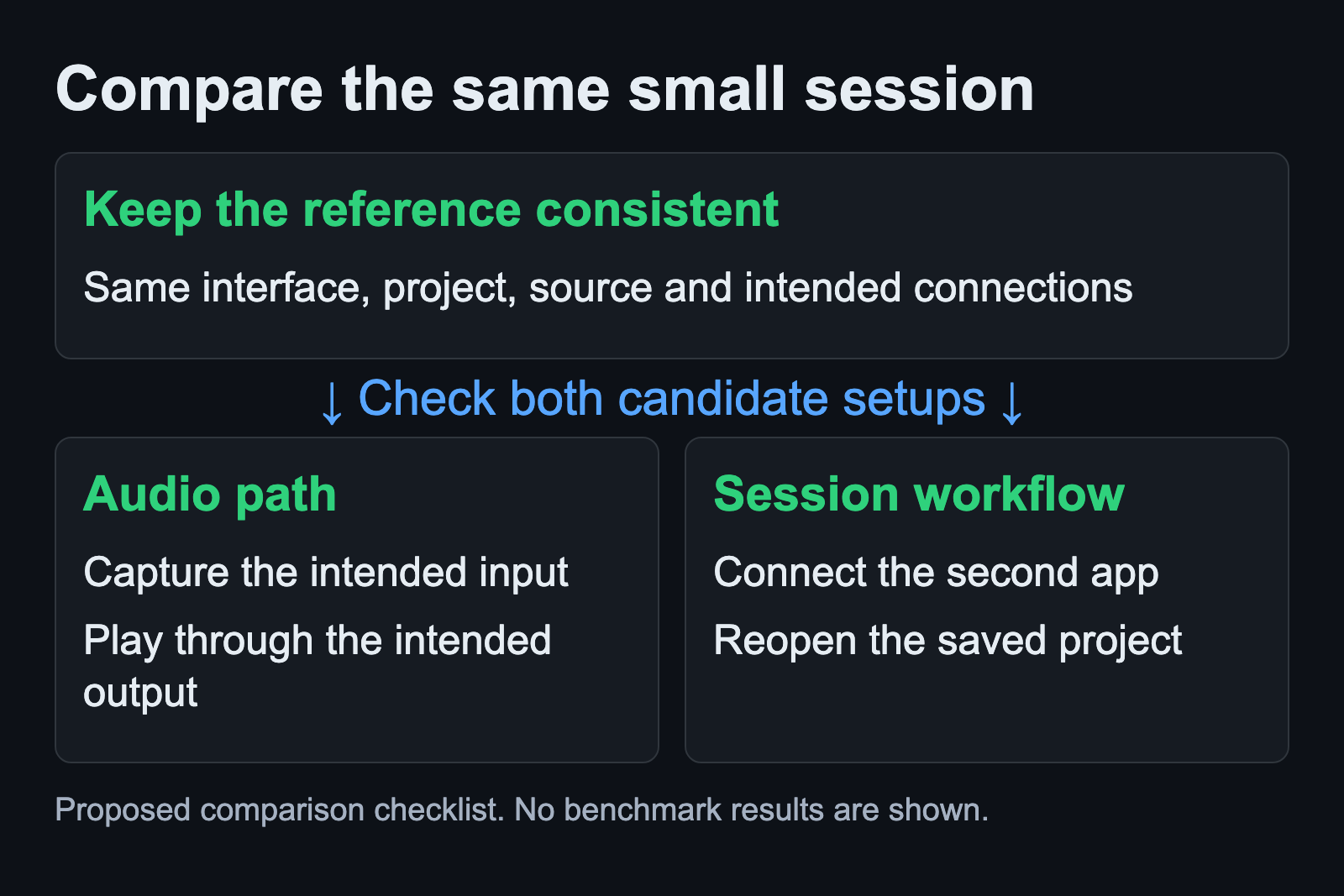
Use a copy of a simple session for the comparison. The following is a proposed check you can perform, not a report of a test we ran.
- Record from the intended physical input and play the take through the intended output.
- Open the additional audio application you actually need. Check the connection that joins it to your session.
- Save the project and note the backend and routing. Close and reopen it to check that you can restore the working state.
- Write down any audible interruption, missing connection, or monitoring delay before changing another setting.
Keep the workflow that satisfies those requirements reliably in your own checks. If you need a different connection or encounter a repeatable failure, investigate that specific gap. Our Linux audio guides organize the next tasks by topic. A description such as “capture works, but the second application is absent from the graph” is a useful starting point for the next investigation.