
For home recording on Linux, start by trying Ardour if your main job is recording performances and editing them into a song. Put REAPER on the shortlist if you want to customize a repeatable workflow, Qtractor if you want a Linux-focused audio/MIDI sequencer, and Bitwig Studio if clip-based composition is central to how you work.
Those are editorial recommendations from the documented capabilities below. We have not run a comparative hardware test or assigned performance scores. Ubuntu Studio 24.04 LTS is our reference environment; each application’s current system requirements and your installed package still need checking.
Ardour for recording and mixing performances
Ardour documents audio and MIDI recording, editing, mixing, and flexible connections between hardware and applications. That makes it a sensible first candidate for a musician who wants to record a vocal or instrument, edit the take, and build a mix around it.
Use a small recording as the evaluation. Add the input you need, capture a take, trim it, and listen through the intended output. Our beginner Linux audio setup guide covers that first capture and playback task with Ardour.
Check how you will obtain and maintain the application. Ardour is open-source software, but its official download page distinguishes ready-to-run builds from source you compile yourself. Do not assume every official binary download is free or that compiling is the easiest starting point. Use the project’s download choices to understand the route you are considering.
Choose Ardour after you have tried the recording and editing work you actually intend to do. Its feature list gives you reasons to evaluate it; your own small session tells you whether you can work comfortably with it.
The first Ardour session guide provides a small recording and export task for this comparison.
REAPER for a workflow you want to customize
REAPER has native Linux downloads, including Intel and ARM architecture options. You do not need to run the Windows application through Wine simply because you are using Linux. Select a download that matches the machine and read the current requirements.
The product documentation covers audio and MIDI overdubbing, take editing, routing, and export. It also describes custom actions, keyboard control, and scripting. Consider REAPER when you already know which repetitive steps you want to make easier and are willing to learn its controls.
Begin with the ordinary recording workflow before adding customizations. Record a source, make the edit you need, save the project, and export it. Then identify one repeated action worth changing. That gives each customization a purpose and makes it easier to understand a later problem.
The official download offers a fully functional 60-day evaluation. REAPER is licensed software; the evaluation does not make it a permanently free product. Check the current license terms after testing your requirements. This guide does not recommend purchasing before that check.
Qtractor for a Linux audio and MIDI sequencer
Qtractor describes itself as a Linux audio/MIDI multitrack sequencer for personal home studios. It uses JACK for audio and ALSA’s sequencer infrastructure for MIDI. Its documented features include recording, non-destructive editing, a mixer, and a connection patchbay.
It belongs on the shortlist if you want to build a song from recorded audio and MIDI clips in a Linux-focused application. Use the same input and short musical idea you would use to assess another DAW. Test the MIDI instrument you need as well as the audio recording path.
Qtractor is free and open source under the GPL. Its feature and requirements pages also distinguish capabilities and dependencies, including items selected at build time. Check the package you plan to use before treating an upstream feature list as a description of every distribution build.
A good trial ends with an exported piece and a saved project you can reopen. Stop short of moving your whole library until that small exercise works. The official Qtractor site links its manual and configuration information.
Bitwig Studio for clip-based composition and recording
Bitwig Studio combines a linear Arranger with a Clip Launcher. Its documented workflow allows recording into either, and its sound-design tools emphasize modulation and instrument building. Consider it when you want to improvise with clips and turn those ideas into an arrangement alongside recorded parts.
Make that intended workflow the test. Build a short musical idea, record a part, and arrange a section you can play back. Check the exact edition you are evaluating; a product overview does not establish which features are included in every edition.
The requirements checked on September 6, 2026 specify Ubuntu 24.04 or later, or a modern distribution using Flatpak, and a 64-bit x86 CPU with AVX2 support. Linux availability therefore does not mean every Linux computer is a suitable target. Read Bitwig’s current requirements before downloading.
Use its official trial information to understand the available evaluation. Save the buying decision until you have checked your hardware and the part of the workflow that made you consider it.
Compare a complete small project
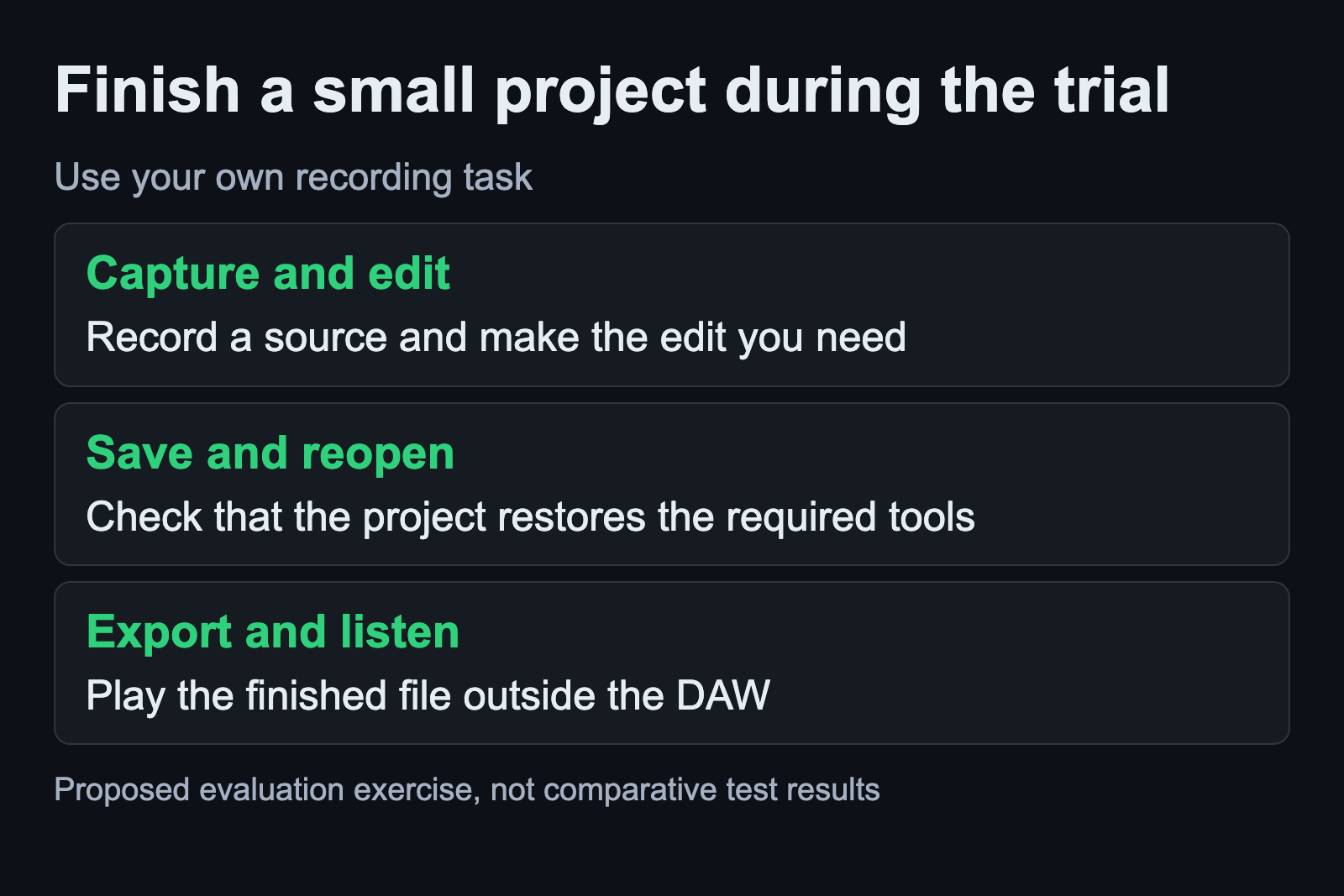
Choose a short piece of your own material and finish it in each serious candidate. The exercise should include the task that usually slows you down. A singer might focus on editing several takes; a keyboard player might focus on recording and revising MIDI.
- Capture or import the source material you intend to work with.
- Make a representative edit and add the instrument or processing you need.
- Save, close, and reopen the project.
- Export the result and listen to that file outside the DAW.
Write down where you needed help and whether the documentation answered the question. Avoid turning the trial into a contest to discover every feature. You need evidence that you can complete your own work, including the final file.
Check plugins separately from the DAW
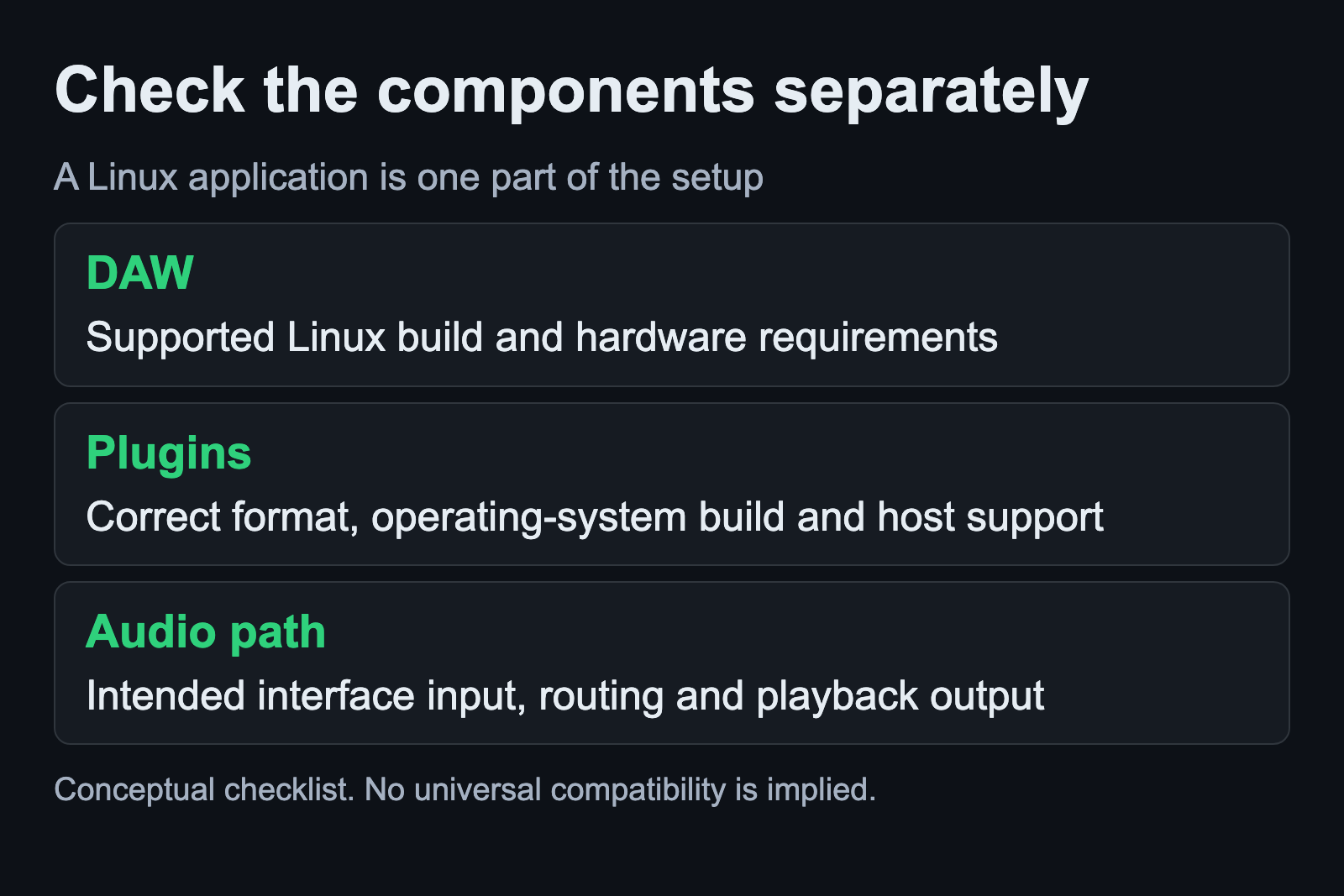
A Linux DAW and a plugin are separate software components. Verify the plugin format and operating-system build, then check the host’s support. A familiar plugin name in an old project does not prove that the same binary will load on Linux.
Projects such as yabridge address Windows plugins in Linux hosts, with their own compatibility requirements. Treat that as another item to evaluate, rather than an automatic benefit of choosing a particular DAW.
Keep the shortlist small once a candidate completes your project and supports the tools you require. Use the Linux audio guides for the specific setup or routing question that remains.
Use the Linux plugin format guide to match the download to the host. If the required plugin is a Windows build, follow the separate Windows plugin compatibility test.