
WineASIO connects a Windows application’s ASIO audio path to JACK while that application runs under Wine. Consider it when a particular Windows recording program is part of the project you need to open. Start by naming that program and the reason you need its Windows version.
This explanation uses Ubuntu Studio 24.04 LTS as its reference desktop. It does not certify a WineASIO package for that release or provide installation commands. The project itself warns that installation paths depend on the distribution and Wine version. Establish ordinary recording first with our Linux audio setup guide.
Identify the part of the project that requires Windows
A Windows application and a Windows plugin create different requirements. You could need to reopen a session in the application that created it. You could instead want one instrument inside a native Linux recording program. Write that requirement as a sentence before collecting bridge software.
For example, REAPER distributes a native Linux version. Someone considering its Windows version under Wine should first check whether the native application satisfies the project. That check must include the actual session and its dependencies. The presence of a Linux download does not establish that every third-party component will behave identically.
For a Windows plugin inside a Linux host, yabridge addresses plugin bridging. Its project documentation names Windows VST2, VST3 and CLAP support. Read its requirements for the host, plugin and Wine environment before choosing that route. WineASIO’s audio-driver role does not replace those requirements.
Make a short dependency list: the application you must use, the projects you need to reopen, and any essential instruments or effects. Mark which requirements you have verified and which remain unknown. This prevents a successful experiment with an empty application from becoming the basis for a larger migration decision.
If only a plugin requires Windows, the Windows VST guide covers that different arrangement. The plugin format guide explains how to check a native Linux alternative.
Follow the application’s audio connection
The WineASIO project describes an ASIO-to-JACK driver for Wine. The Windows application uses the driver, which connects its audio to the JACK side of the Linux setup.
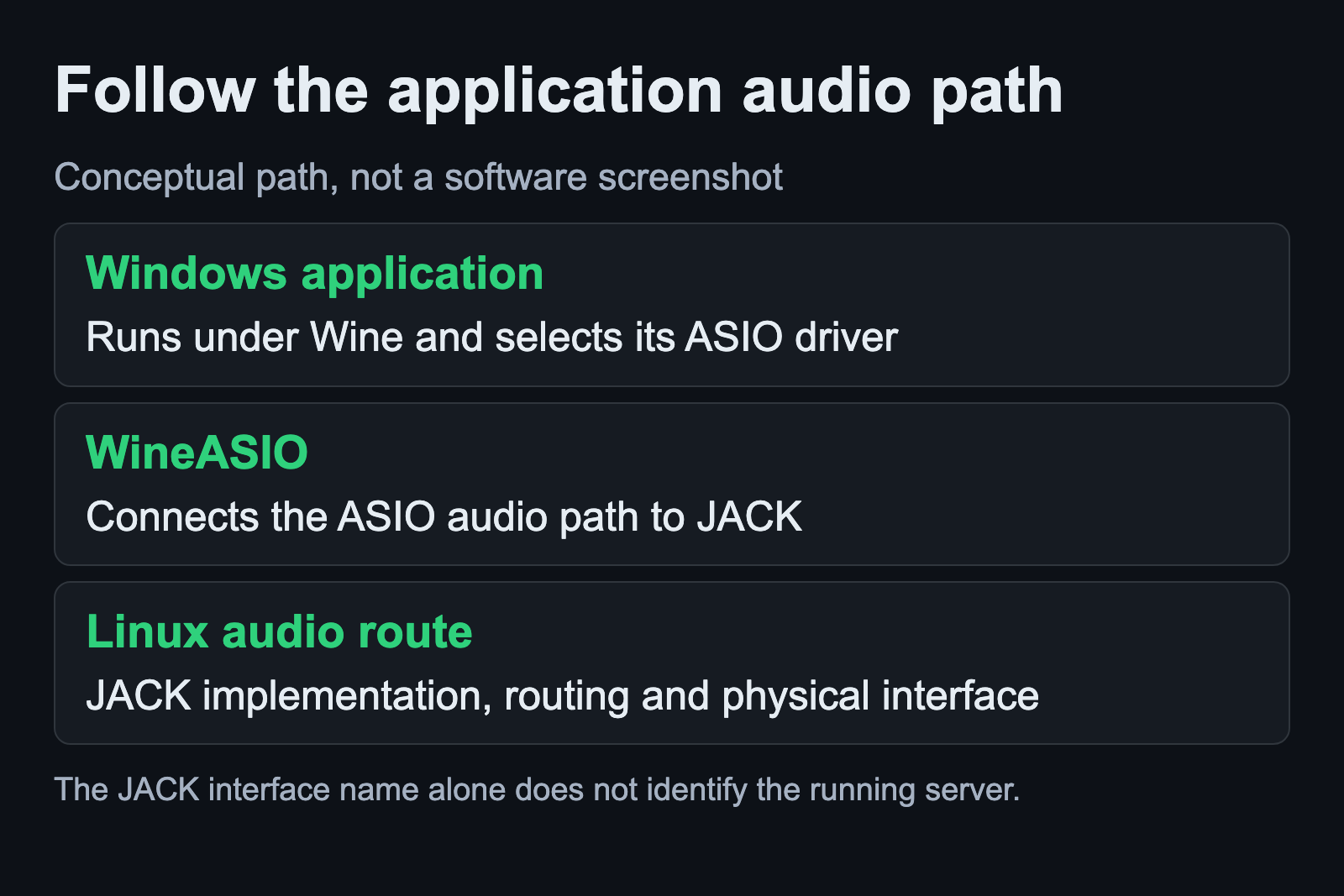
JACK is the name of an API as well as its implementations. PipeWire also provides JACK-compatible client libraries. A JACK-facing application does not identify the underlying server merely by showing JACK in a setting.
PipeWire’s documented pw-jack wrapper changes library selection for an application. Its manual says that the wrapper has no effect when the compatible libraries already replace JACK’s libraries system-wide. This explains why a copied launch instruction cannot, by itself, establish which implementation your application uses.
Record the intended audio path before troubleshooting. Name the application, the audio driver it selects, the Linux audio service, and the physical output you expect to hear. Treat every unknown as a question to resolve. Avoid replacing the desktop audio setup simply because one application has failed to open a device.
Match registration to the application’s environment
The official README separates installation from registration in each Wine prefix. It supplies a helper named wineasio-register. It also warns that its example installation paths are hints that can differ from the paths needed by a particular distribution and Wine version.
Use the instructions associated with your actual package and runtime. If a launcher manages the application’s Wine environment, determine which environment it launches before following a separate registration recipe. Keep the package version and the application environment in your notes so you can explain what was changed.
This guide deliberately stops short of inventing a command for an unknown installation. A useful installation instruction must match the runtime, architecture and package layout in front of you. When those details are unclear, resolve them from the package or runtime documentation before copying files.
Test the application after registration
A successful registration message is one observation. A working recording session requires more evidence. In an original WineASIO issue opened in November 2024, a user reported successful registration and a visible driver choice, followed by failure when the application tried to open that driver. That report establishes a distinction between those stages; it does not predict the result on your machine.
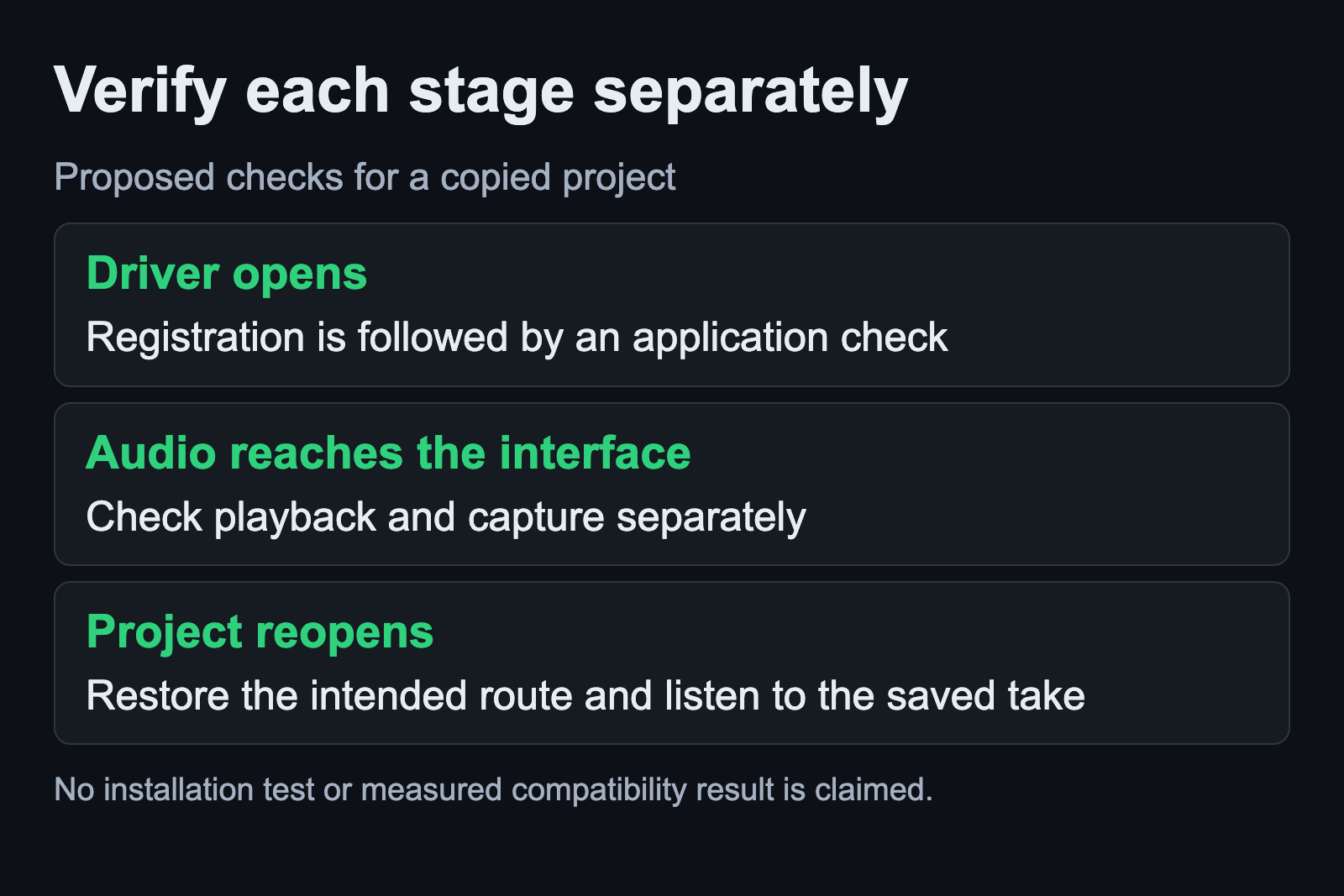
Prepare a copy of a small project for your own check. First confirm that the application launches and opens the copy. Then select the intended driver and note whether it opens without an error. Record the exact point where progress stops, rather than describing the whole attempt as “audio does not work.”
If the driver opens, check playback through the intended physical output. Test recording from the intended input separately. Listen to the recorded result after stopping the take. These are proposed checks for your setup, not a test result from JackLab.
Keep routing and responsiveness as separate checks
WineASIO documents hardware-connection options and a fixed-buffer setting under which JACK controls the buffer size. Preserve the current settings before changing them. An open driver still leaves a routing question: which application channels reach the interface channels you intend to use?
For the first comparison, keep the same project, interface and monitoring route. Make a note of the active sample rate and buffer setting where your audio tools report them. If you change several parts of the path at once, you lose the reference needed to explain the result.
Describe audible interruptions separately from monitoring delay. Also distinguish sound heard while playing from sound present in the saved take. Those observations help narrow the next investigation without claiming that a particular driver will deliver a universal latency improvement.
Preserve a project you can reopen
Save the test project, close the application and reopen it. Check that the required audio route can be restored and that the recorded material remains usable. If an essential plugin is part of the requirement, include that plugin in the test before declaring the project ready for regular use.
Keep the original project and the earlier working configuration available throughout the trial. Your notes should identify the distribution release, application build, Wine environment, WineASIO package and failure stage. Include the smallest repeatable example when asking the relevant project for help. Remove personal paths or project material that does not help explain the problem.
Choose the next step from the result you observed. A missing driver, a driver that will not open, and a silent recorded track require different investigations. The Linux audio guide index provides the related setup and routing topics as the collection grows.