
Install native JACK when your recording workflow specifically needs that server. A JACK-compatible application can also work through PipeWire’s JACK implementation, so the presence of a JACK option in a DAW does not by itself mean another server needs installing. Establish which implementation your system currently uses before changing packages or starting a controller.
The package instructions here assume Ubuntu 24.04 Noble. Ubuntu Studio users should also read the distribution-specific switch described below. For the reason behind this choice, see the JACK and PipeWire comparison. Keep a note of your working configuration so you can return to it after the test.
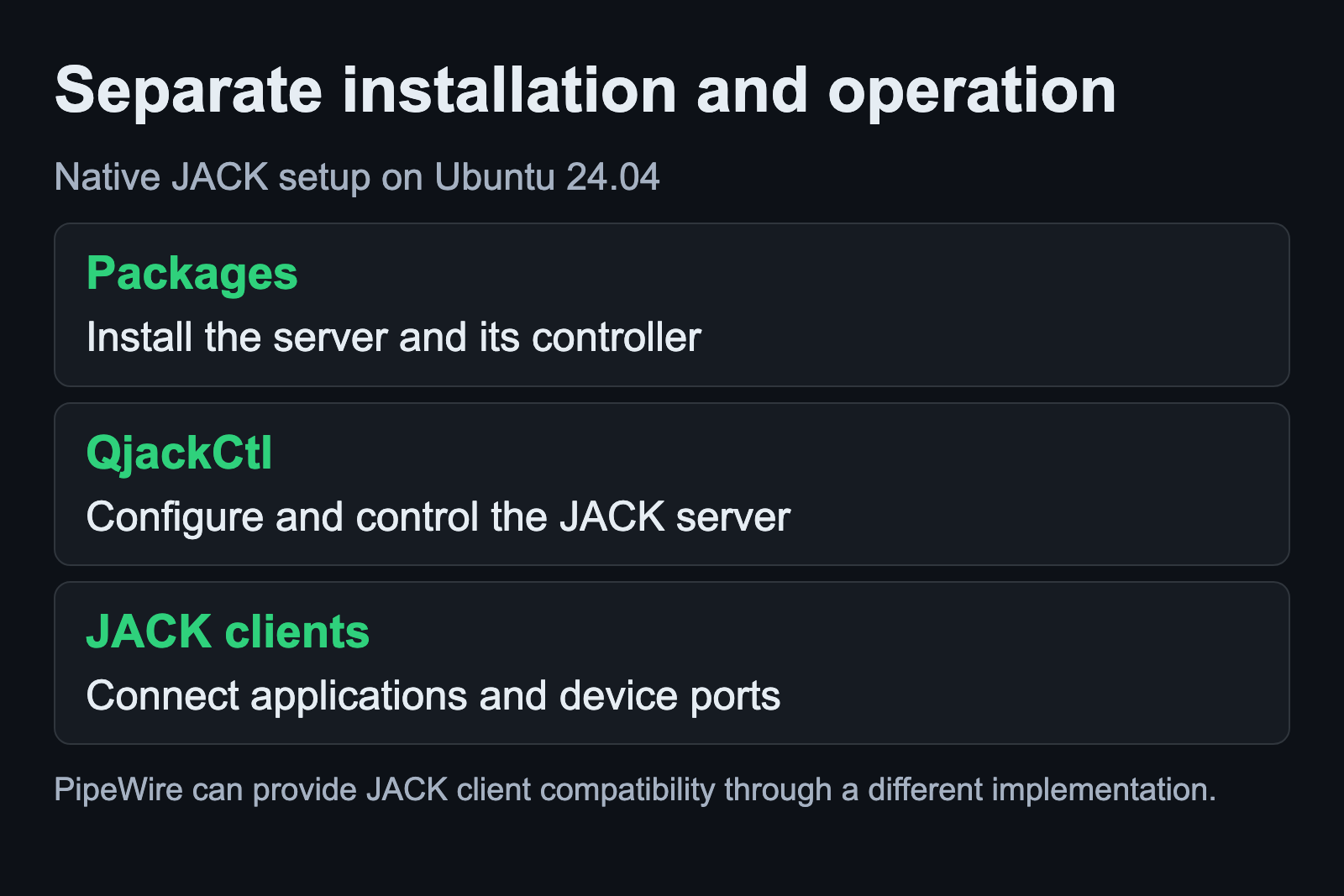
Review the packages before installing
Ubuntu’s Noble package catalog lists jackd2 as the JACK server package and qjackctl as its graphical controller. Both entries are in the Universe section. These names are verified for this release; another distribution can package the same software differently.
First review the proposed package transaction using the simulation option documented in the Ubuntu apt-get manual:
apt-get -s install jackd2 qjackctlThis is a preview based on the package information currently available on the machine. The manual notes that a simulation run without administrator access can have incomplete access to configuration. Read its warnings and the proposed installations or removals. If the plan would replace something you depend on, resolve that before proceeding.
In an administrator terminal, refresh the package indexes and then request the installation:
apt-get update
apt-get install jackd2 qjackctl
These commands change the installed system. Review the final transaction when prompted. Do not add an automatic acceptance flag while you are learning what the change will do. If the packages are unavailable, check the configured Ubuntu release and repositories against the package catalog; do not substitute a package from an unrelated distribution.
Choose the implementation on Ubuntu Studio
The Ubuntu Studio Audio Configuration documentation describes a control for disabling or enabling PipeWire-JACK so advanced users can use native JACK through QJackControl. This is a system-wide change that requires administrator authentication. Record the current selection before using the control.
Keep that implementation switch separate from the older option that replaces the entire PipeWire audio configuration with PulseAudio and JACK. The distribution marks that older whole-configuration method deprecated and unsupported in 24.04, and says it is absent in later releases. It is not part of this installation recipe.
Finish and save any active recording before changing implementations. Close the audio applications for the comparison and reopen them after the intended configuration is selected. The useful question is whether the application connects to the server you intend to use. Installing a controller alone does not answer that question.
Open QjackCtl and identify the interface
The QjackCtl manual for Noble documents starting the controller with:
qjackctlOpen its setup controls and inspect the saved configuration before starting a server. QjackCtl stores daemon parameters between sessions, according to the upstream project documentation. A saved choice from an earlier interface can therefore be relevant to a startup failure today.
For an ALSA device inventory, the official JACK device-naming FAQ provides this observation command:
cat /proc/asound/cardsRead the names in square brackets and identify your connected interface. Numeric discovery order can change after a restart, particularly with USB equipment. The FAQ explains using a named device to avoid ordinary reordering, while noting an exception when multiple instances of the same card type are present. Use the name reported on your machine, rather than a card name copied from a tutorial.
The ALSA device guide explains the playback and capture listings used to identify hardware before selecting it here.
Set the backend and audio timing deliberately
The JACK server manual distinguishes the audio backend from that backend’s device selection. For this guide the relevant backend is ALSA. Select the intended interface and a sample rate that it supports. Keep your choices in the reference notes instead of assuming the first listed device is the external interface.
The manual also distinguishes period size from sample rate. Choose a conservative starting configuration that works for your equipment, then investigate latency separately after recording succeeds. This guide gives no universal numeric buffer setting because that would hide the variation in devices, drivers and session workloads.
Start the server through the controller and read the reported result. If startup fails, preserve the actual error and check the selected device, implementation and scheduling access before changing another setting. Do not run the DAW as an administrator to work around a permissions problem. Follow the distribution’s supported audio configuration instead.
Prove recording and playback before saving the setup
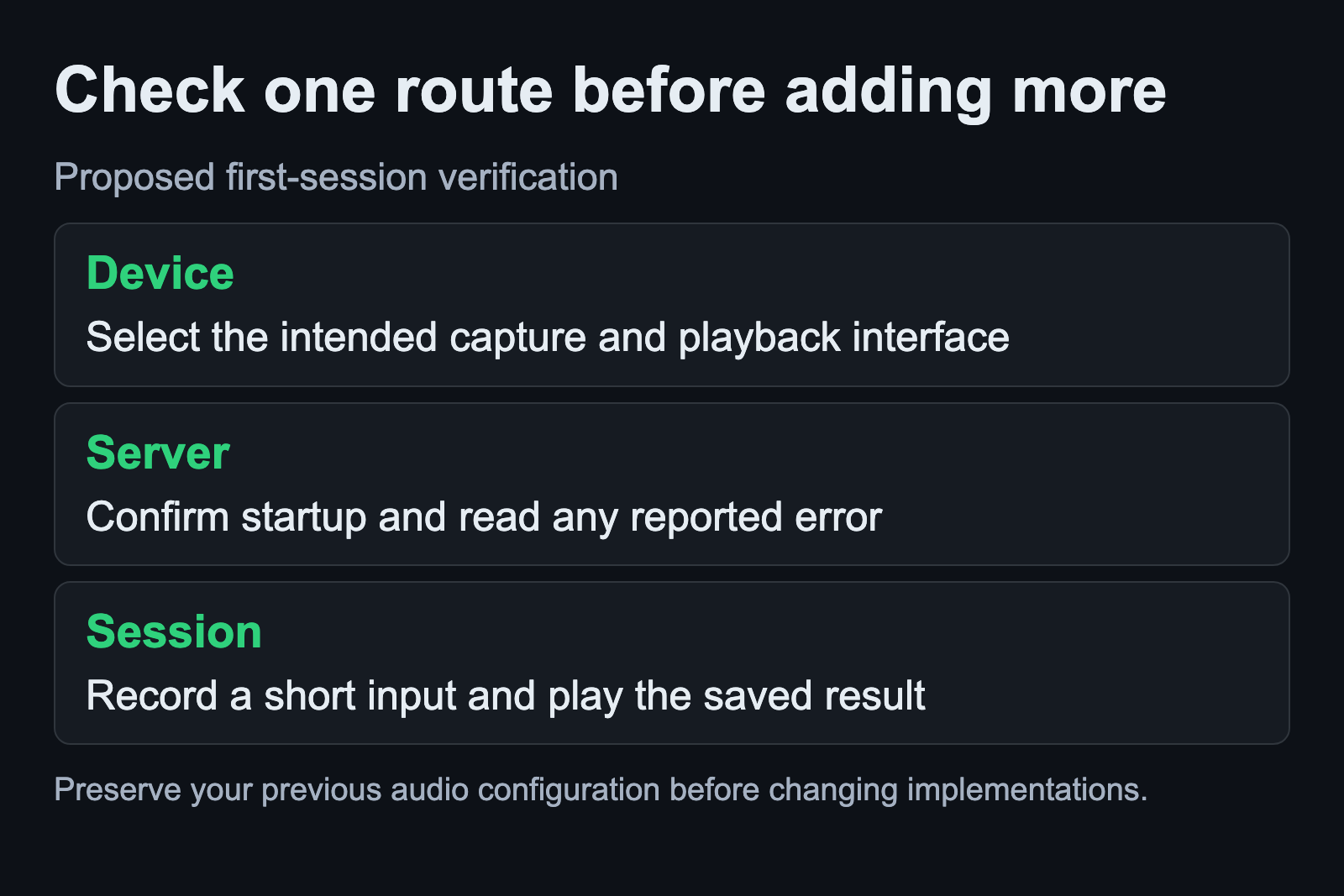
Open one audio application and establish a short recording path from the interface input to a track. Confirm the intended playback destination as well. The signal-flow guide explains why an input can show activity while a later connection is missing. A running server is only one part of the complete path.
Record a brief test, stop recording and listen to the saved result. Check that you hear the recorded track rather than only an external hardware-monitoring path. Then save the session and note the controller settings that produced it. Add more applications or tighter timing settings only after this reference works.
No Linux installation or interface benchmark was performed for this article. The commands and package identities were checked against the stated release documentation. Your completion check is a repeatable recording and playback result on the selected interface, with enough notes to restore the configuration that worked.
Sources and scope
Ubuntu Noble package entries and release manuals establish the package names and command syntax. The JACK FAQ supplies the device-naming procedure. Upstream and Ubuntu Studio documentation establish the controller and implementation roles. Checked September 6, 2026.