
Linux audio signal flow is the route a sound follows from its source to its destination. A moving input meter tells you something reached that point. To record and hear it, you also need the intended connections through the recording application and onward to the physical output.
This guide uses Ardour on Ubuntu Studio 24.04 LTS with the installed PipeWire setup. It explains how to inspect a small session, rather than prescribing universal port names. If you have not yet made a first recording, start with the beginner setup guide and return here when you need to understand the route.
Draw the path you intend to use
Begin with one source and one audio track. Write down the physical input, the track that should receive it, the track’s destination and the output you intend to hear. In an ordinary Ardour session, track outputs feed the master bus. A monitor section can form another part of the listening path when the session uses one.
Keep the drawing specific to your session. A diagram that includes every possible bus, effect and application becomes harder to compare with the simple recording you are checking. Add another branch only when that branch serves a requirement you can name.
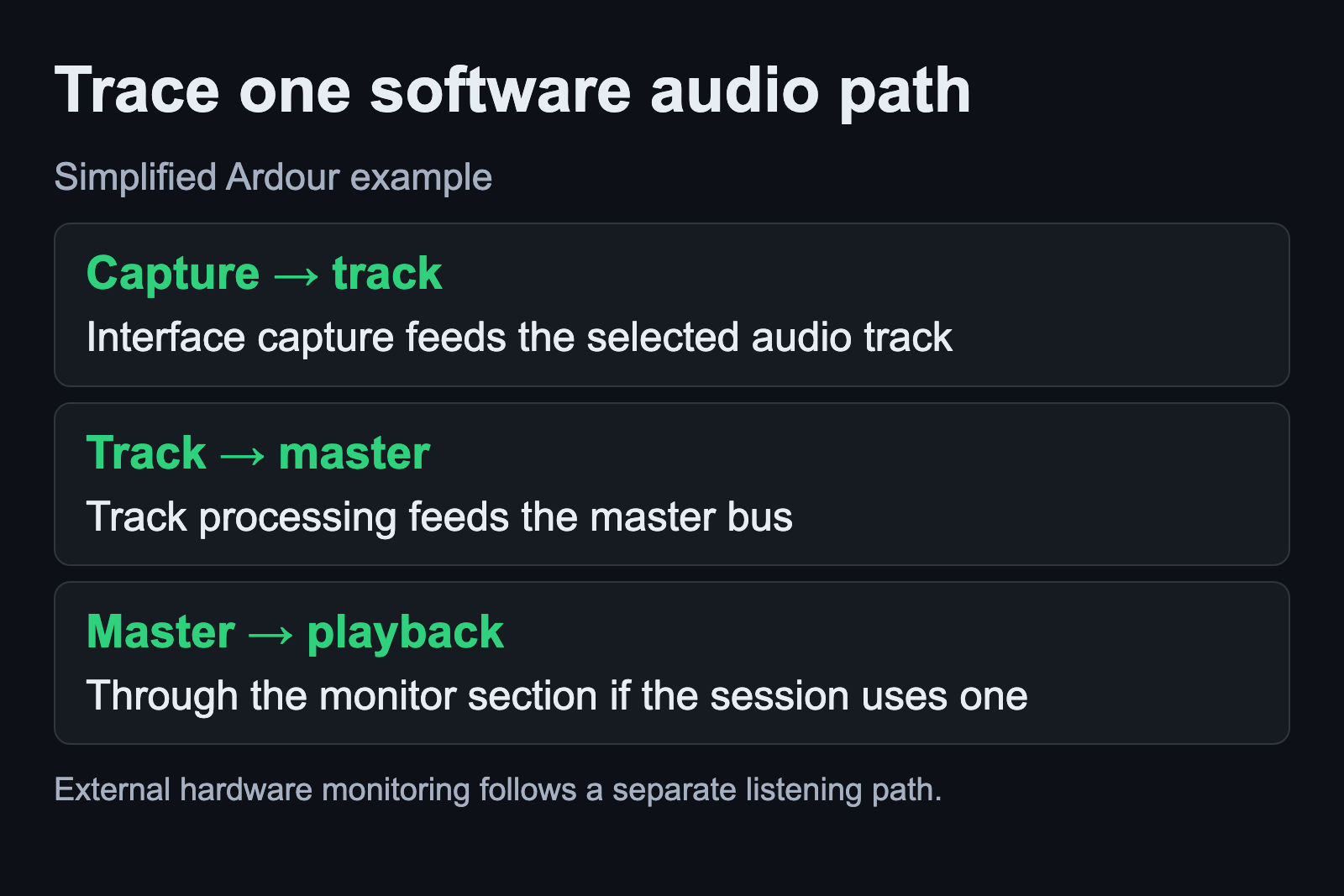
Ardour exposes ports for tracks, buses and other parts of its signal chain. When it uses the JACK backend, other applications can also access those ports. This makes the boundary of the recording program relevant: some connections are between its own tracks, while others join it to hardware or another application.
Read port direction from the object’s viewpoint
Physical and software labels can appear contradictory until you ask whose input or output you are looking at. A microphone enters a physical input socket. In an audio graph, the capture side can provide that audio from an output port to an application’s input.
PipeWire describes a graph as nodes joined through ports. A link connects an output port to an input port. Its documentation gives the example of a stereo playback device appearing as a sink with input ports. Those graph inputs receive the audio that the device will play.
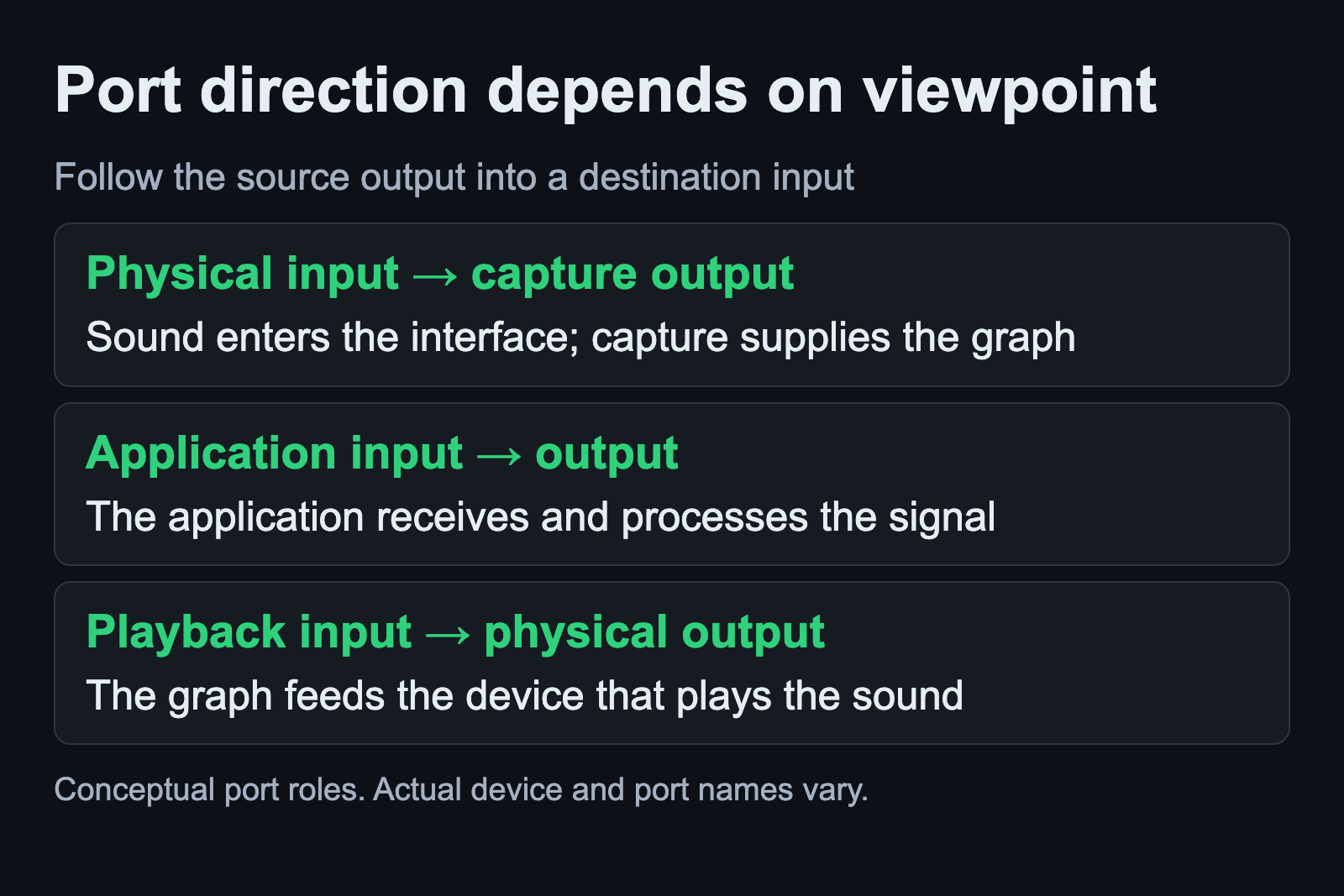
When a label seems backward, identify the object attached to it. Ask whether it supplies data to the next object or receives data from the previous one. Keep the physical socket name and the graph port name together in your notes so you can match the two viewpoints.
Do not substitute a port name from someone else’s screenshot. The useful evidence is the port exposed by your device or application while it is running.
Inspect Ardour’s connection grid
Open Window > Audio Connections for Ardour’s global audio patchbay. The patchbay groups sources, which produce data, and destinations, which consume it. Their placement can vary with the number of ports, so read the headings before interpreting the grid.
Green dots indicate connections. Identify the source track and destination bus for the route you drew. Then check the intended hardware connection. The patchbay includes different groups of ports, and a missing group can reflect what is available in the current setup.
A click in the grid can make or break a connection. Inspect it first and preserve the current session before editing. There are also exceptions to what the patchbay controls, including internal aux sends and monitor-bus connections. Avoid treating the grid as a complete list of every processing relationship inside Ardour.
For a small diagnostic change, name the connection you intend to alter and the observation you expect afterward. Restore the previous route if the result does not match that expectation. Randomly adding dots makes the diagram harder to explain.
Follow processing inside the track
Ardour’s track-flow documentation describes processing from top to bottom. The processor box can contain plugins and other routing elements. Reading the visible order helps you understand which processing comes before the next stage of the track.
The channel count can change along the way. Ardour documents flexible input/output behavior, including a mono input followed by processing that produces stereo output. Do not assume the track’s final ports have the same width as its original input.
When checking an unexpected result, use a copy of the session and inspect the processing you added. Keep the original version available for comparison. If a specific plugin changes the channel layout, that observation gives you a smaller question than “the entire audio setup is wrong.”
For a controller and software instrument, the MIDI setup guide follows the change from incoming events to generated audio.
Identify the route you are listening to
Ardour distinguishes external monitoring from software monitoring. With external monitoring, a separate mixer or supported interface supplies the listening path. Ardour plays no part in that monitoring path. With software monitoring, the application makes track inputs available at track outputs according to its controls.
Write down which route you intend to hear. Hearing an instrument through an interface’s direct-monitor facility does not, by itself, verify that the recording application captured the intended input. Conversely, a recorded take can contain audio while the route you expect to hear during performance remains unresolved.
Check a saved take after stopping the recording. Keep that playback observation separate from what you heard while performing. This separates two useful questions without promising that every interface has the same monitoring controls.
The monitoring guide connects this route to the meter position and saved playback check.
List PipeWire ports without changing connections
On the stated Ubuntu 24.04 base, the documented listing example is:
pw-link -iolThe Ubuntu manual and current upstream manual both describe this command as listing ports and their links. Run it while the relevant application is active. Compare its names with the path you intend to use. This is an observation of the current graph, not a recipe for restoring that graph after a restart.
The same utility also has modes that create or remove links. Keep those operations separate from this inspection. If the listing is confusing, save the output with your session notes and identify the relevant source and destination before attempting a change.
Keep a trace that another person can follow
A useful problem report names the source, destination and last point where the expected signal is present. Include the selected backend, the relevant port names and what happened when you played the saved take. Avoid assuming that a visible level at one point proves the rest of the path.
Keep the working session and its route available after a successful check. Our Linux audio guides separate device setup, routing and latency questions so the next change can address the symptom you actually observed.