
A MIDI controller can appear in Linux and still make no sound. First confirm that its events reach the application. Then check the instrument that turns those events into audio and the output that carries that audio to your headphones or speakers.
This guide uses Ubuntu Studio 24.04 and Ardour as the reference environment. The terminal commands only list ALSA MIDI ports. The recording steps describe a proposed test session, not a controller model that was tested for this article.
Know what the controller is sending
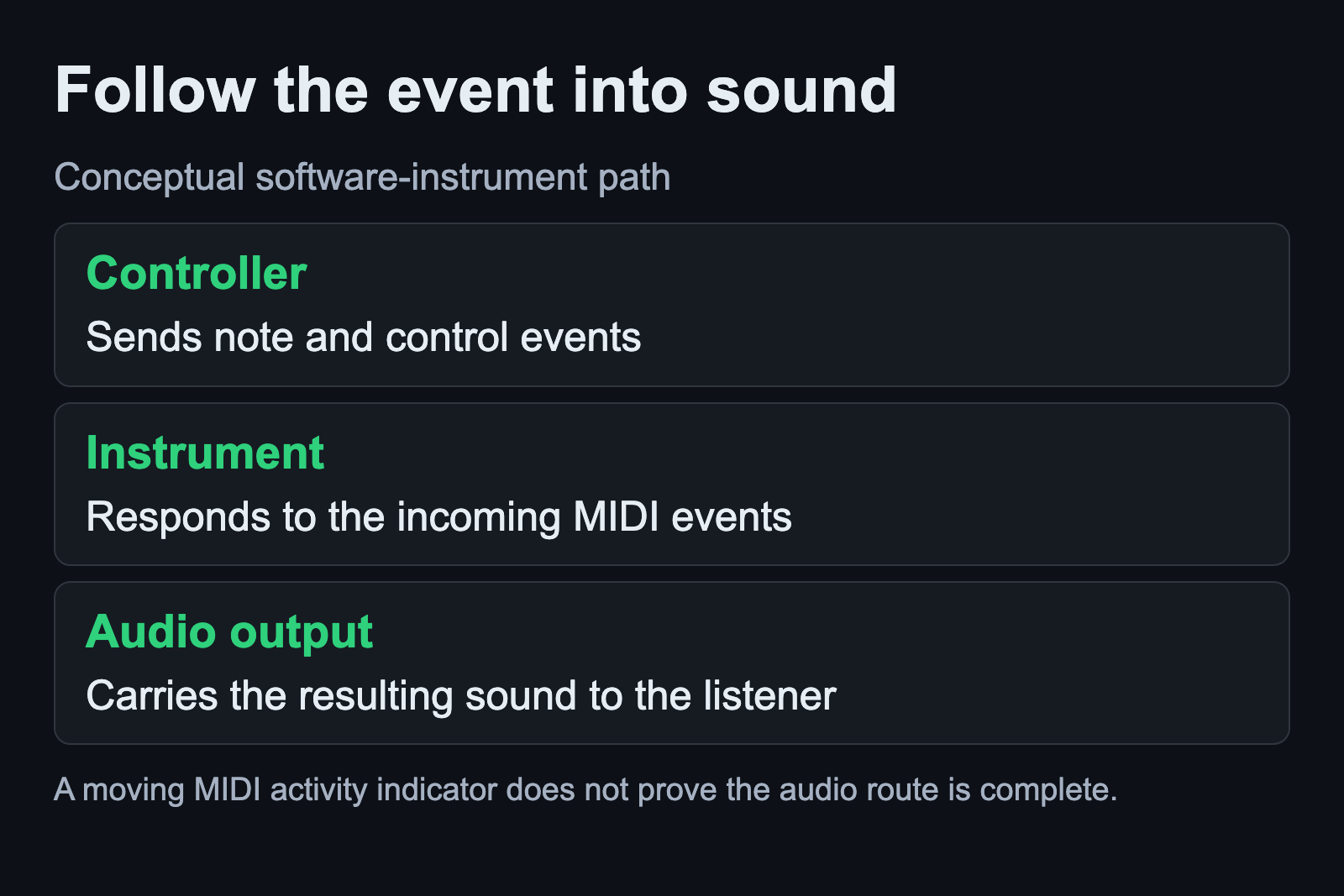
The Ardour MIDI overview describes musical information carried as messages, including note-on and note-off events. A software instrument responds to those messages. The resulting audio still needs an output route.
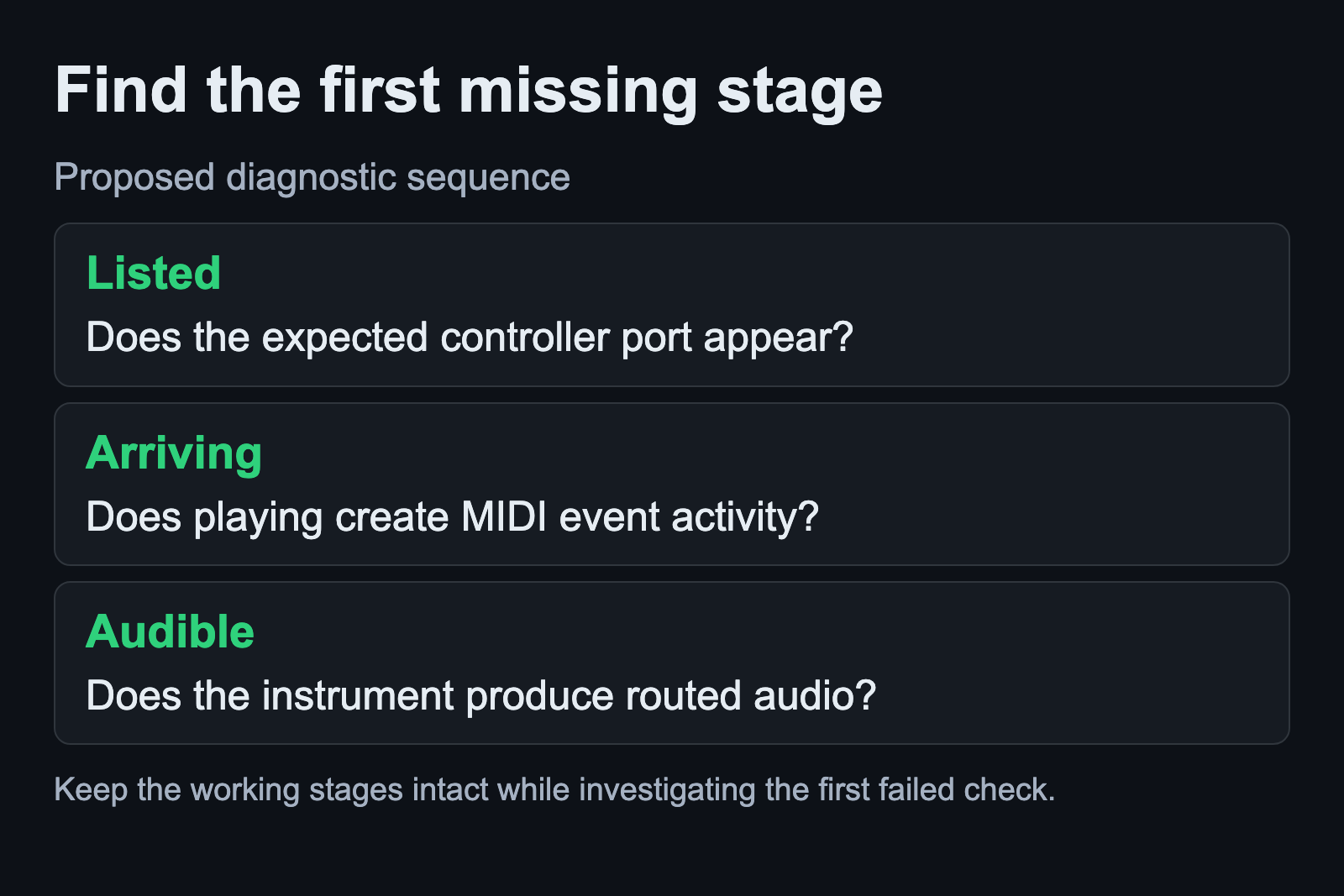
This separation explains why a MIDI activity indicator is useful but insufficient. It can show that events reached one stage without proving that the chosen instrument received them or that you can hear its output. Work through the path in order instead of replacing settings across the whole session.
Our Linux audio signal-flow guide explains how sources, processors and destinations fit together. Here, the first connection carries musical events; the instrument’s downstream audio connection carries the sound you intend to hear.
Check which ALSA MIDI ports are visible
With the controller connected, use the listing options documented in the Ubuntu Noble aconnect manual:
aconnect -i
aconnect -o
The first lists readable input ports and the second lists writable output ports in ALSA sequencer terminology. Read the names in your own output. Do not copy a port number from a tutorial and assume it identifies your controller.
Another documented listing is available through the aseqdump utility:
aseqdump -lThis lists possible input ports; it does not by itself show the notes you are playing. Keep that distinction in your notes. If the expected controller is missing, investigate its connection and documented Linux requirements before changing the DAW’s instrument settings.
If either utility is unavailable, consult the distribution’s package information for the named tool. Avoid copying an installation command for a different release. A missing command and a missing MIDI device are different observations, so record which one you actually encountered.
Confirm Ardour’s external MIDI connection
The Audio/MIDI Setup reference describes the Linux MIDI System choices, including ALSA sequencer and raw devices. Selecting None disables the external MIDI backend while still allowing internal MIDI routing. An internal instrument test can therefore work even when the external controller is unavailable to the session.
Check the backend choices actually offered by your Ardour installation. Preserve the settings from a working session before changing them. If the controller appears in the ALSA list but not in the application, this is the stage to investigate before rebuilding the entire audio setup.
Observe events before judging the sound
Ardour’s Recorder input panel provides MIDI channel activity and a monitor of recent events. Play a short phrase and watch the intended input. This gives you a concrete observation to compare with the earlier port listing.
If events arrive on a different input from the one selected by the track, correct that connection using the application’s routing controls. Keep the test limited to one controller and one track until the path works. Adding more inputs at this point makes it harder to tell which device caused the activity.
Create a MIDI track with an available instrument
The Add Track documentation distinguishes track types and provides an Instrument selector for MIDI tracks and busses. Choose an instrument that is already available in your installation, then select the intended controller as the track input.
Use a recognizable sound for the test. Verify the track’s monitoring choice and the instrument’s audio route to the master output. If events are visible but the instrument is silent, inspect this part of the session before assuming the controller has stopped working.
A hardware synthesizer is a different arrangement: its sound comes from the hardware and needs an appropriate audio connection. This guide’s test uses a software instrument inside the DAW. Write down which arrangement you are testing so the MIDI connection and the sound source do not get conflated.
Record a phrase and verify playback
Save the test session, arm the intended track and use Ardour’s recording controls to capture a short phrase. Stop recording and inspect the captured region. Switch to the appropriate disk-playback monitoring state before judging whether the saved phrase plays correctly.
For the surrounding session workflow, follow the first Ardour session guide. Keep the controller test small enough that you can repeat it after a change. Save and reopen the session, then listen to the instrument playing the recorded phrase again.
Record the controller name, selected input and instrument used. A successful test establishes that this particular path works in that session. Additional controllers, external instruments and more complex routing deserve their own check rather than an assumption that one successful note verified everything.
Include the gestures that matter to the intended performance in the saved test: a brief note, a held note and a control you expect to use. Check that each appears in the resulting playback. If one part fails, note the gesture and the stage where its activity disappears. That gives the next investigation a more precise starting point than a successful device listing alone.
Sources and scope
Command options come from the Ubuntu 24.04 ALSA utility manuals. Application controls and MIDI behavior come from Ardour’s documentation. No controller compatibility survey or timing benchmark was performed. Sources checked September 6, 2026.